Your RSS home, with a cat
A homepage that lines up the newest articles from your favorite news sites and blogs, RSS-reader style. When something new arrives, the cat who lives here lets you know.
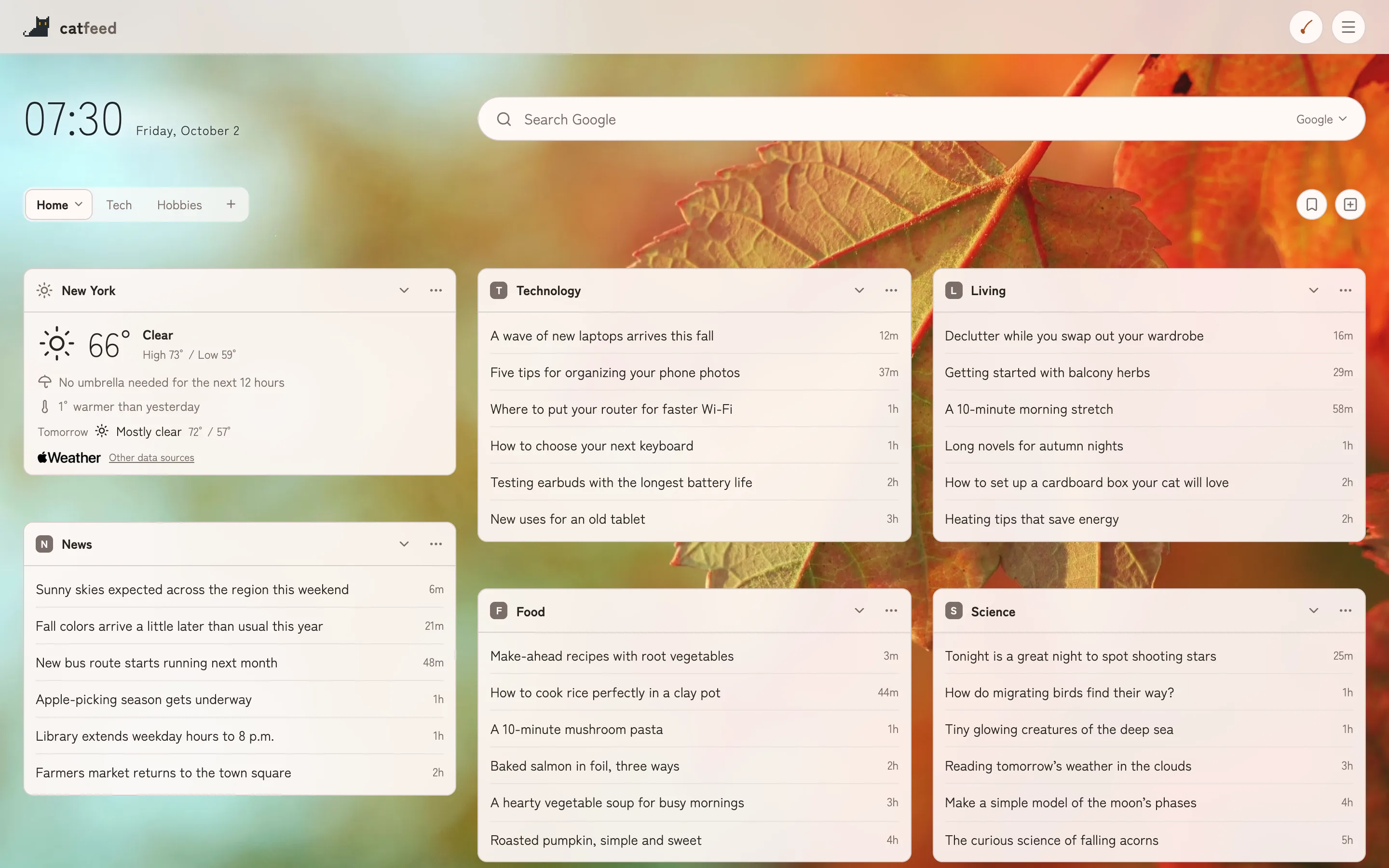
A cat has moved into the RSS homepage
Open it, and the day’s news is all there at a glance. catfeed follows in the footsteps of iGoogle, My Yahoo!, and Netvibes, the personalized homepages that put everything on one page. Put your favorite news sites, blogs, and keywords into boxes, and fresh articles will be waiting every time you open your browser.
And a small black cat lives on this page.
What the cat does
Always on the newest article
The cat lounges on the box with the newest article. When a new one arrives, it says “!” and trots over. Wherever the cat is, that’s where the newest article is.
Doing its own thing
Walking, stretching, napping: watch for a while, and all sorts of things happen. Rest your mouse on the cat for a moment, or long-press on a phone, and it narrows its eyes as you pet it.
Playing with a cat toy
Press the cat toy button at the top right, and the cat chases the toy, swatting and leaping at it. You can try it right here on this page.
Any coat, any pattern
In the Pixel Cat Maker, you choose the coat color, pattern, and eye color, and you can even draw your own markings. Orange tabby, tuxedo, calico, Siamese: make a cat that’s all yours, and let it move into your page.
What you can do
Just enter a URL
Enter a site’s URL, and catfeed finds its RSS feed and turns it into a box. You can paste a whole list of URLs at once, too.
Suggestions by category
Pick from suggested sites by category, like news, technology, and food.
Keyword news
Enter a word you’re curious about, and catfeed gathers the latest news that mentions it.
Weather
Add a weather box to see at a glance whether you need an umbrella today, or if it’s colder than yesterday.
Pages and columns
Organize topics into pages (tabs). Choose from one to five columns per page, drag boxes to rearrange them, and collapse the ones you don’t need right now.
Background photos
Set a photo you like as the background, and the colors of the whole page adapt to it.
On your phone, too
On phones, boxes line up in a single column that’s easy to read. Light and dark modes are available.
The same page everywhere
Log in with Google or Apple, and the same page opens on your computer and your phone. Your last view shows up instantly, then updates with the latest articles.
Bookmarks
Save articles you want to read later to your bookmarks.
Getting started
- 1
Log in
Log in with your Google or Apple account.
- 2
Pick your sites
Choose from the suggestions, or paste the URLs of sites you want to read. You can also start with the same boxes as the demo.
- 3
Make it your homepage
Set catfeed as your browser’s homepage (the page that opens when you start it), and the day’s news and the cat will be waiting every time you open your browser.
On a phone, add it to your home screen to open it right from an icon. On iPhone, use the Share button in Safari; on Android, open the Chrome menu. Then choose “Add to Home Screen.”
Questions
Does it cost anything?
All currently available features are free to use.
Can I use it without knowing what RSS is?
Yes. RSS is a way for sites to announce new articles, and many news sites and blogs offer it. With catfeed, just enter a site’s URL, and it finds the RSS feed for you.
What if catfeed can’t find a site’s RSS feed?
Look on the site for the orange RSS icon or a link labeled “RSS,” and enter that URL. Sites that don’t offer RSS can’t be added.
Can I move over from another service?
If you used an RSS reader, export an OPML file from it and import it in Settings. Its folders become pages (tabs). If you didn’t, gather the URLs of the sites you read and paste them all at once; catfeed finds their RSS feeds and lines up the boxes.
Can I use it on my phone?
Yes. On phones, it shows a single column, and once you log in, the same page as on your computer opens.
Give the demo a try
No login needed. Read some articles, pet the cat, and rearrange the boxes.